Showing posts with label CVAD Zoom Optimzations. Show all posts

Thursday, November 11, 2021

Prevent Unoptimized Connections for Zoom in CVAD


Quick little write-up for Zoom users around Citrix VDI setups that want to stop all connections coming in unless.s they have the Zoom HDX plugin on the client. In other words, it prevents unoptimized connections.

I needed a way to stop users from using Zoom if they didn't have the Zoom HDX Media Plugin installed on their clients from home. Without the Plugin, it uses the VDA resource in an unoptimized fashion. I know you can tune Citrix policies around this, and this may be ok for smaller setups. But in a larger environment, it most certainly impacts each VDA, which dramatically affects the Hypervisor and even causes significant issues if many users are not using the optimized fashion around the intended use case.


Luckily Zoom had done their homework and made this possible for all of us EUC folks

https://support.zoom.us/hc/en-us/articles/360032343371-VDI-Client-Registry-Settings


Current testing and results.


  1. The current version I am are running in the Lab Citrix Environment

  2. Zoom Client for VDI 5.4.59208

  3. Zoom HDX plugin version is 5.4.592.8

  4. Citrix Virtual Apps 1912.3000

  5.  In my testing, I added the HKCU( This can be HKLM as well) Failback mode to 4 on the VDI side. Which detects if the Plugin is not installed and deny users from joining a meeting using the traditional way

  6. I then removed my Zoom HDX plugin from my client.

  7. Results: it detected I did not have the Plugin and wouldn't allow me to join.
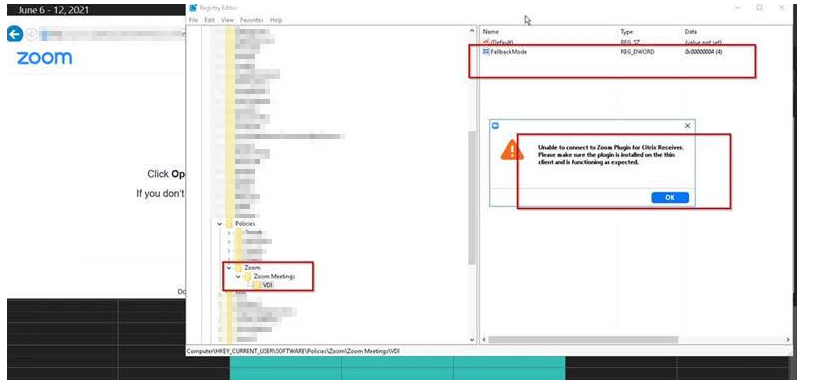
 

  1.  I added the Plugin back, and then I got the same results. I did some research, and this is a known issue on this version I am using on the VDA side while publishing this blog.

Bug Fix


  • The version that fixed this is 5.5.3

  •  https://support.zoom.us/hc/en-us/articles/360031768011

  • Resolved Issues

  • Minor bug fixes

  • It resolved an issue that blocked the connection to the VDI plugin for customers configured to use Mode 4 fallback mode.

  • April 3, 2021 version 5.5.3

  • I installed the 5.5.8 version on the VDI machine, then left the Zoom HDX plugin removed from my client.


  1. Results are denied, which I expected because I didn't install it, and I need to make sure I had a deny before I installed the Zoom HDX Client.


  1. I then installed the 5.5.8.20606 Zoom HDX media plugin on my client. At this point, the VDI has the fixed version, and it allowed me to connect.
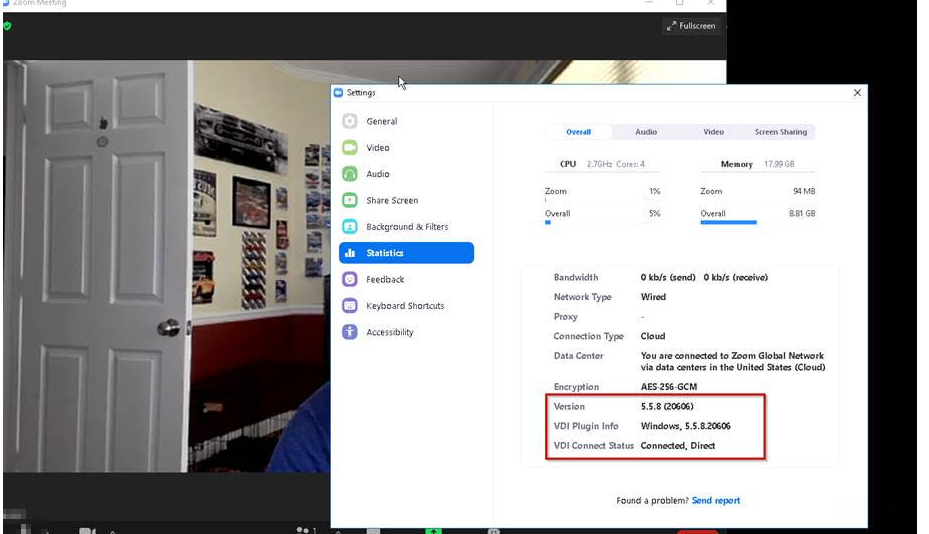


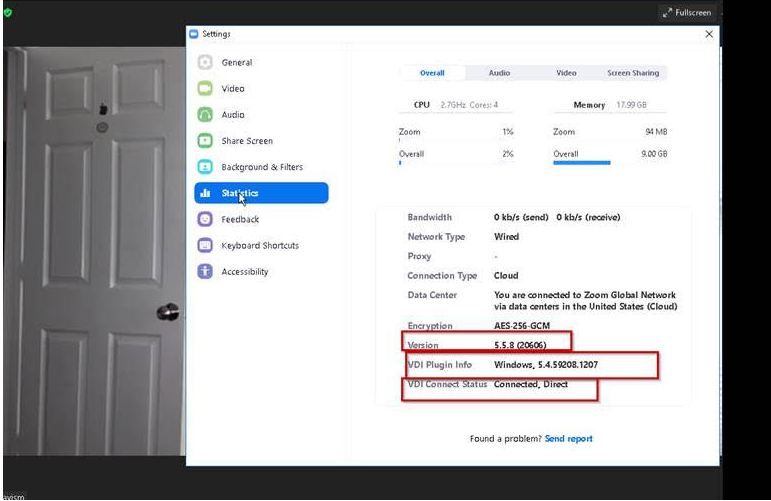
  1. Now I downgraded my Plugin from 5.58 to 5.4.592.8 to see if it allowed the new VDI installer to work with an Older Zoom HDX media plugin.


  1. The client Media plugin is now back on the older one we communicated out when deploying Zoom.


  1. Remember 5.58 is on the Citrix VDI at this point.


  1. The results were, It allowed me to connect in from the Old Zoom Media Plugin. It's important because we can update the VDI versions, but the clients are outside your company's control. I needed to ensure they could still use Video/Audio Optimized and not inconvenience the users to upgrade or get blocked. 


  1. Ideally, you want them to upgrade, and I am unsure if you can force them to do so, as the VDI version is a higher build. I was looking for some type of detection method that would notify them. As an example, the Avaya Workplace client for windows. For now, I would need more research to be conducted on this topic.
 

  1. "The standard Zoom client in a screen and video sharing session with minimal screen updates, such as a demo of business software, may easily consume two full CPU cores (50 percent of a quad-core VDA). The CPU consumption is even higher if generic drivers are used, so this is why it is recommended using optimized drivers by Zoom or by another provider."


  1. "The ICA traffic carrying the video and screen sharing data can also exceed 1 Mb/s of bandwidth, which is four times higher that of "normal" consumption (baselined around 250Kb) with a dual monitor setup at 1920 by 1080 resolution. The bandwidth consumption while sharing full-screen high-resolution 1080p video with an optimized driver set is even greater — 3Mb just for the video alone. Generic driver bandwidth consumption may reach 10Mb — another reason to use optimized drivers."


  1. "A sample of this from a test environment is shown below:" Note: this was a screenshot from a Citrix blog. 
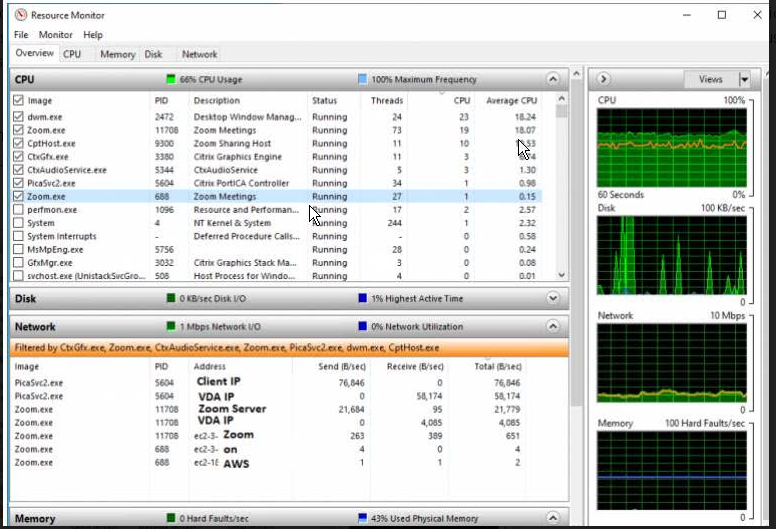


  1. "The participant in the same screen and video sharing meeting, who is using Zoom VDI, consumes a small fraction of the compute (15 percent of the overall CPU) and network (100Kb) resource utilization — a quarter of the CPU and a tenth of the network bandwidth as compared to the desktop client. Please note, these numbers may be affected by the type and configuration of the underlying host CPU."


sources

https://www.citrix.com/blogs/2020/10/01/lessons-from-the-field-zoom-on-citrix-virtual-apps-and-desktops/

https://support.zoom.us/hc/en-us/articles/360031768011


  1. My preferred rollout is to apply WEM policy to the group or domain users, and it depends on the setup in your environment.


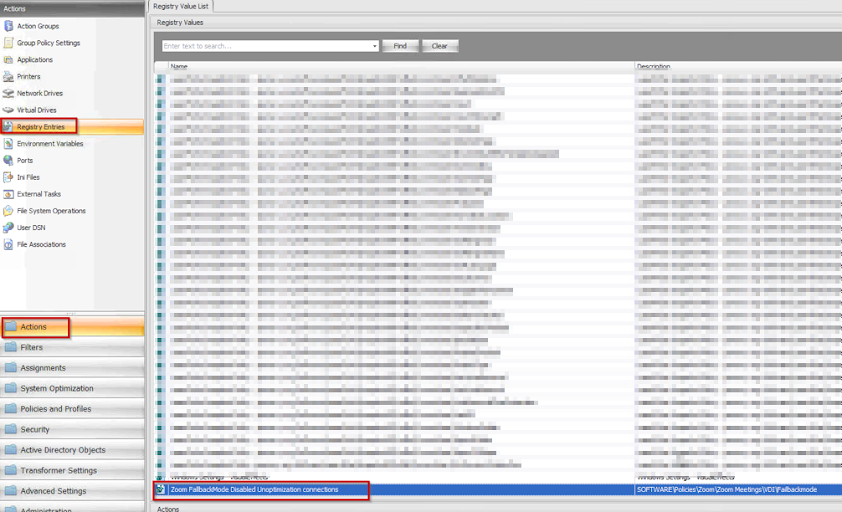
  1. WEM Registry 

Graphical user interface, application

Description automatically generated

Graphical user interface, application

Description automatically generated

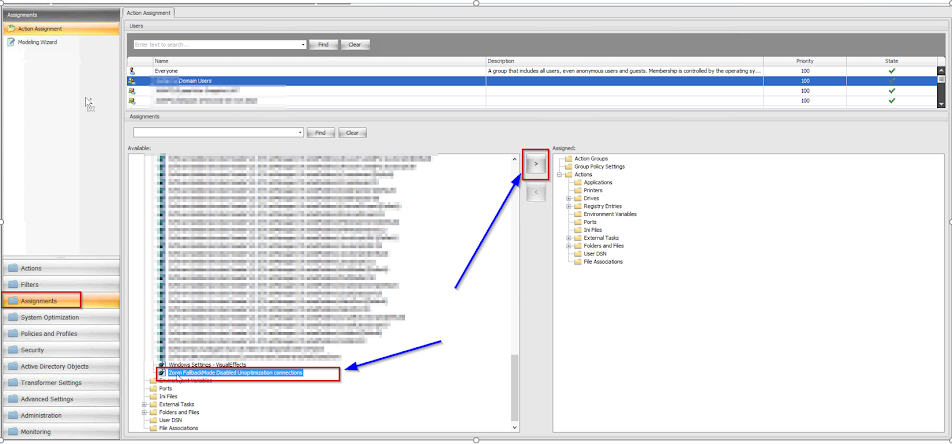
  1. Go to the assignment and Select the Registry action, Then apply it to how you use it in your environment. I always do "true" for me in situations like this. 


  1. WEM applied it on the next reboot, or you can refresh them from the console here


  1. Then as you can see here, when you try to join a meeting and don't have the Zoom HDX plugin, each user receives this message. 
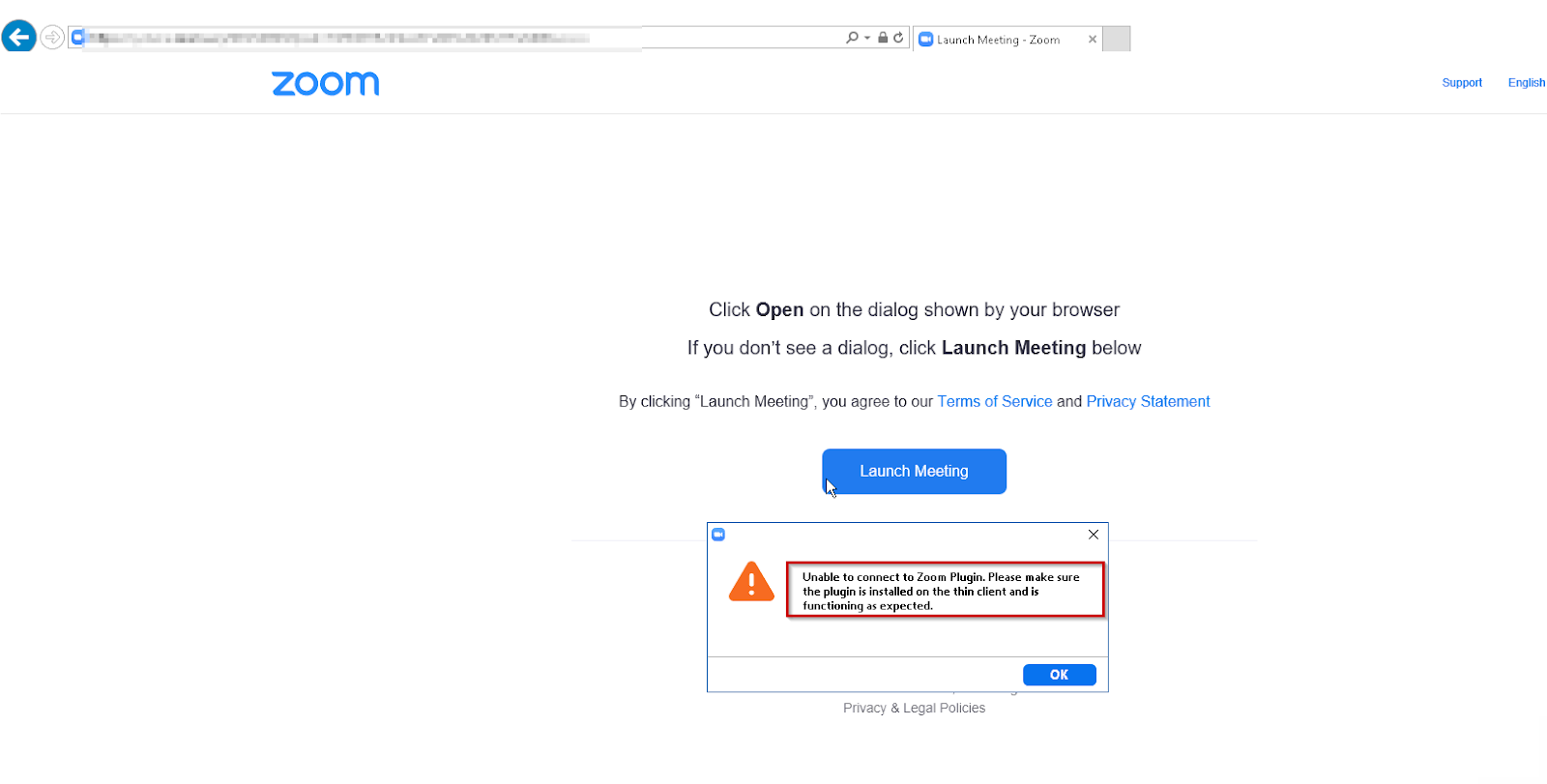
 

Graphical user interface, text, application, email

Description automatically generated


One thing to note:

This isn't the solution if you are looking to use this around delivering Zoom from the browser.  The reason I say that is the reg keys take effect when the VDI Zoom installer is present. Now in my testing, it almost acts like Teams web version. If the client is detected, it will launch the native Zoom VDI software. But if the client isn't seen, I would assume it will hammer the VDA. In this case, I would suspect Citrix Browser content redirection would be the go-to here. I posted a link below that can give you more details about this. 


source

How to deliver optimized Zoom meetings with Citrix | Citrix Blogs


I hope this has been informative.

Until next time 😊


Thursday, September 23, 2021

Zoom optimization for CVAD


Summary

This guide is geared around explaining how Zoom and Citrix work together, and it will show you the Architecture and provide information for what is needed on the clients. There is information added in the document for education purposes as well. At the time of writing this blog, I tested everything on an older version. However, I updated some screenshots to reflect a new version. I did keep the old screenshots to help show the details as well. The same principle applies, though. 


Zoom VDI information 


  1. Zoom requires both the “Zoom Media Plugin” + “Zoom Client for VDI” to match exactly from version 2.1.5 documented at – https://support.zoom.us/hc/en-us/articles/360031768011-New-Updates-for-Virtual-Desktop-Infrastructure-VDI-


  1. The Citrix Team handles the “Zoom Client for VDI” installations on all VDI machines. The information here Is strictly for informational purpose


  1. For your company managed device, You can use SCCM to push out the “Zoom Media Plugin” to corporate devices


  1. Personal devices that are being used to connect to Citrix VDI/Published will need the “Zoom Media Plugin” installed on their personal device. We provided a URL for the employee to go and download this.  Remember Its important to make sure the Plugin need to match on the Client and VDI side


The current VDI installer is 


Zoom VDI installer

5.459208


The Clients need to have this version

Zoom Plugin for Clients 

5.4.59208


VDI downloads and backward compatibility Chart

  1. This is a link to show you the backward compatibility for Citrix and how to get the downloads

https://support.zoom.us/hc/en-us/articles/360041602711-VDI-downloads-and-backwards-compatibility


Remember when upgrading the plugins, The VDA VDI installer but be at the same version or newer than the Plugin on the clients. If the client has a newer plugin installed than the backend VDA VDI install. It will not work the way it is supposed to, and the offloading process will NOT occur. I always find it safe to upgrade the VDI installer first (Citrix VDA), as it will be greater than the Zoom HDX Plugin on the clients. It seems to work well this way. In your case, just test things before you deploy. 


“To be compatible, the plugin version must be equal or less than the Zoom VDI application version. Installing a plugin with a version greater than the Zoom VDI application is not supported. Zoom always recommends updating the Zoom Plugin after updating the Zoom VDI application as many new features require an updated plugin. “


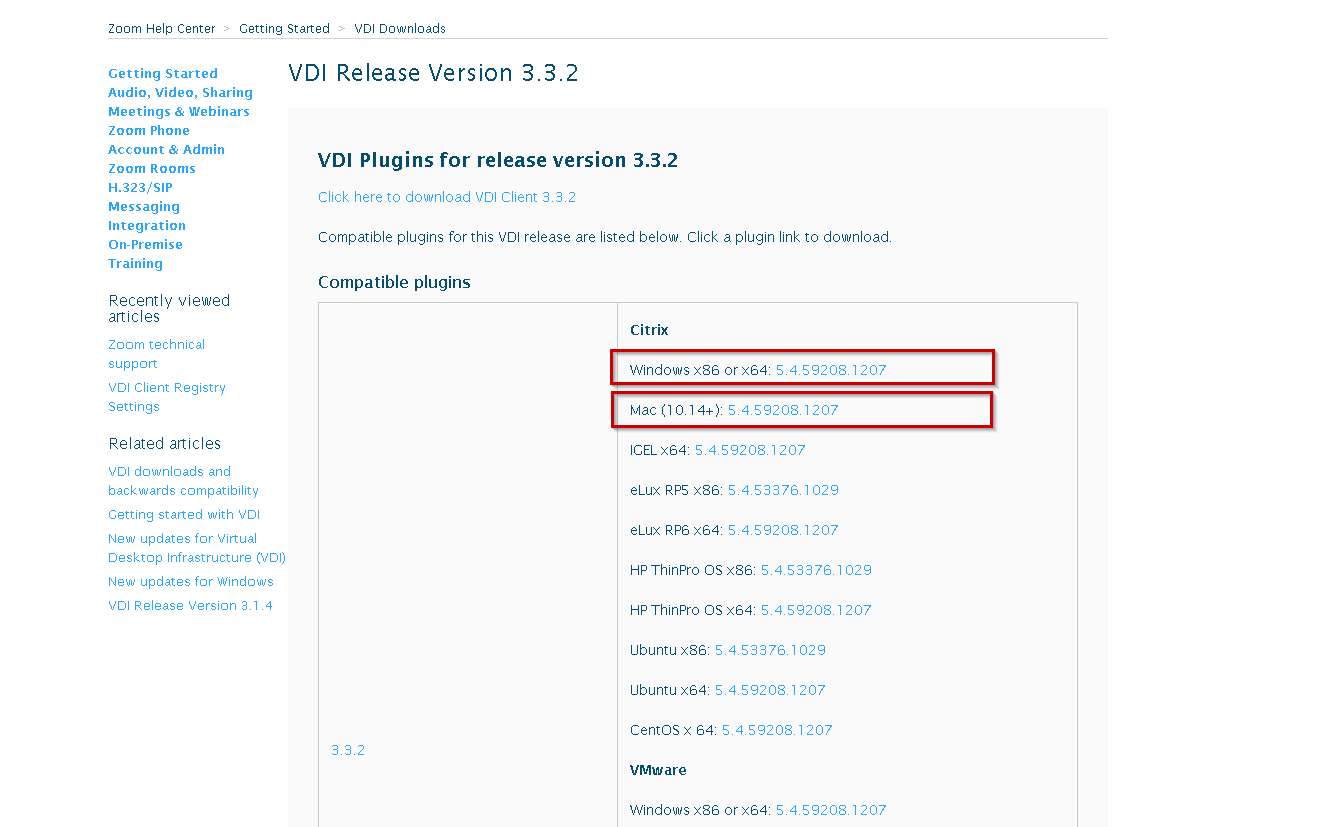
Zoom VDI Plugins for Clients URL

https://support.zoom.us/hc/en-us/articles/360052984292


Updated

VDI Release Version 5.7.6 – Zoom Help Center


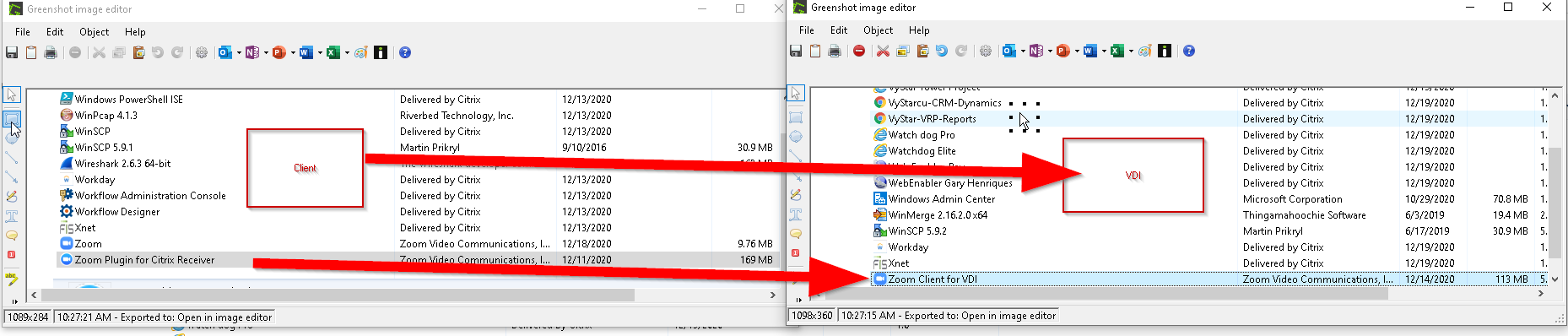
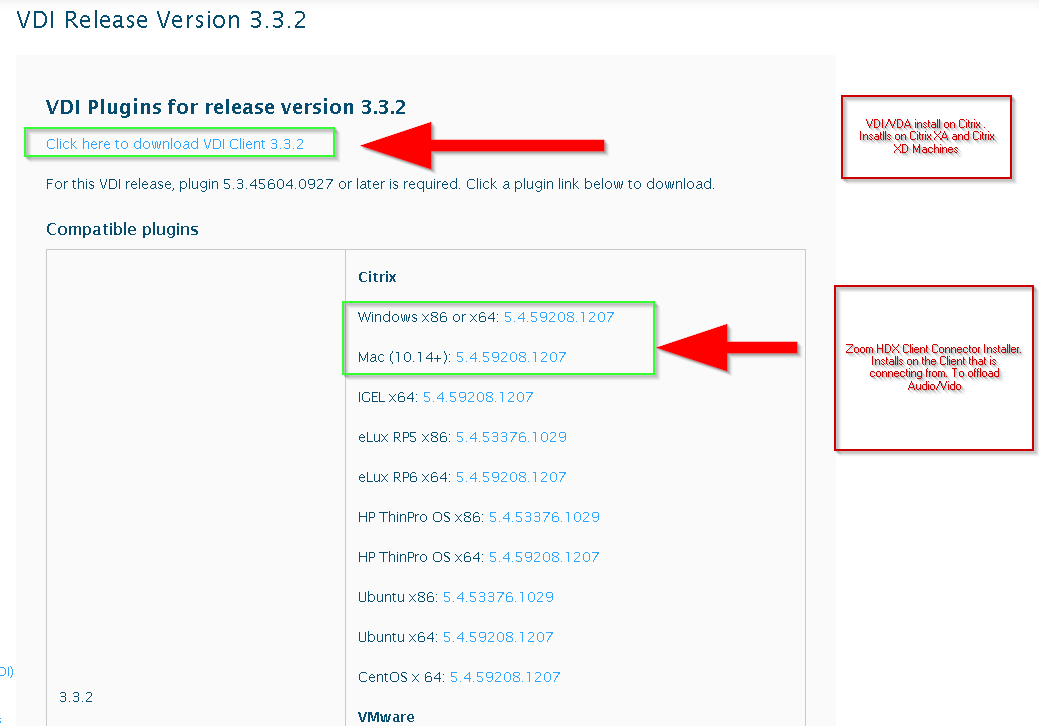
The VDI plugin on the left goes on the VDA (Arrow Red)

The Zoom HDX Plugin (Arrow in Blue) is the installer for the Client.

They both are needed to work together to offload the audio and Video to the client.


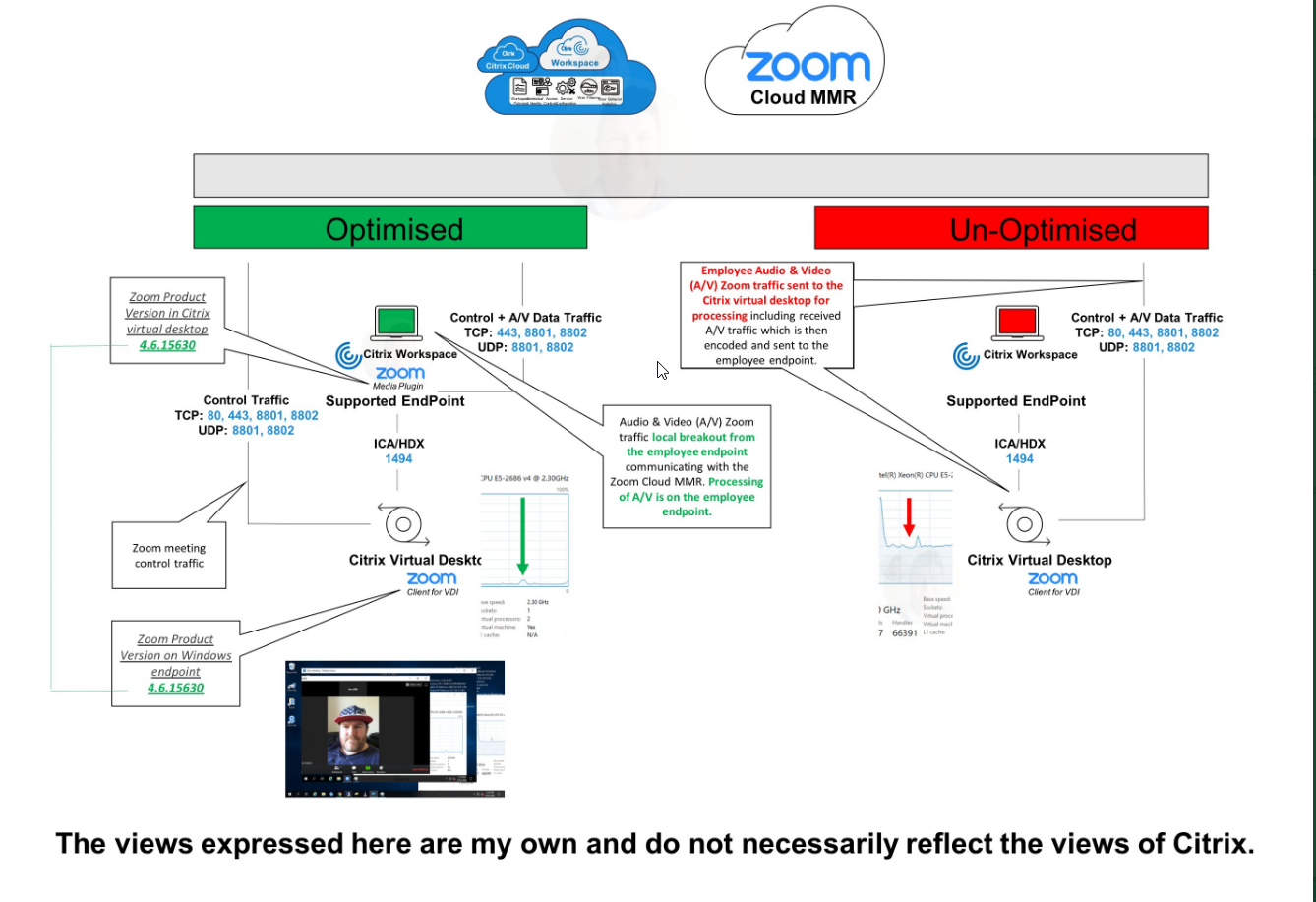
High Level Architecture of Zoom in Citrix 

*I didn’t create this as I referenced it in this blog. Context is at the bottom on the blog.*

How to install the “Zoom Media Plugin” for a personal device

Open an internet browser of the user's choice.

Put this URL in the search bar https://support.zoom.us/hc/en-us/articles/360052984292


Download the required Zoom Media Plugin for the operating system that is needed

In this example, I have a Windows Operating System. I downloaded Windows x86 or x64: 5.4.59208.1207. Once it downloads, the Zoom Media Plugin. The typical area of download will be store in the Downloads folder. 


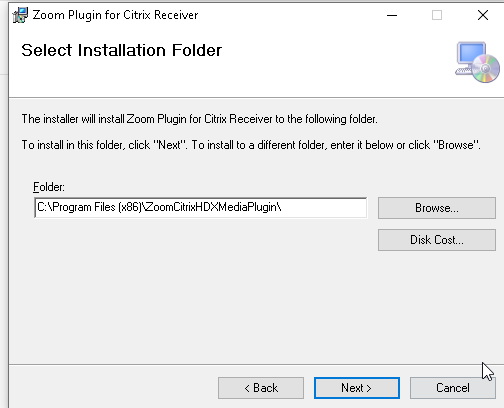
Double click on the  ZoomCitrixHDXMediaPlugin.msi. It will now open up and start the process.

Click next


Click next 

Click Next

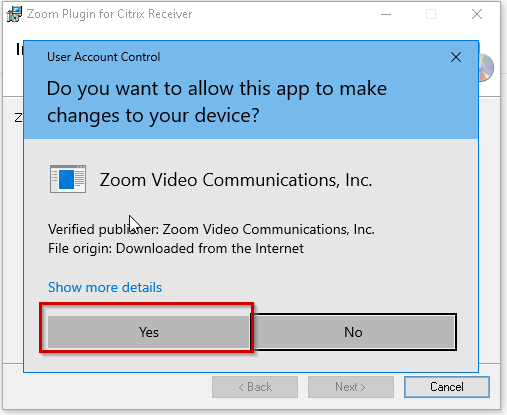
Once its starts intalling, It will ask you if you want to allow the software to make changes to your device. Click yes

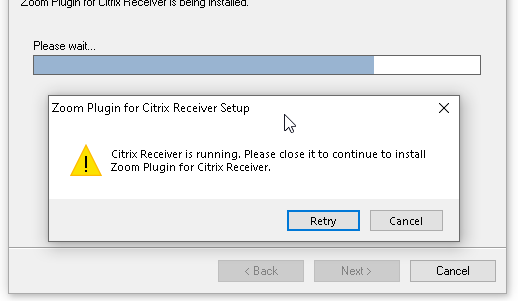
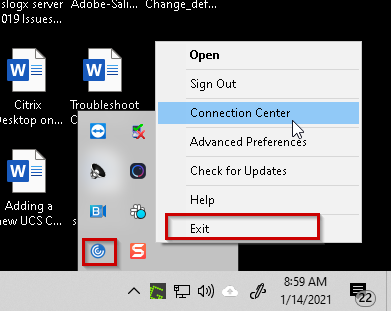
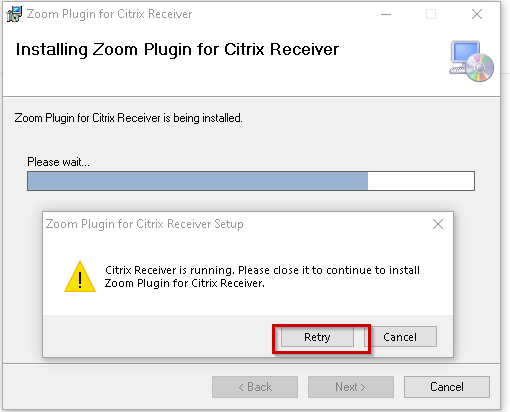
If you receive this error, you have to close out of the Citrix session, and Exit Citrix workspace


Before exiting the Citrix workspace, please save all your work, and properly exit the application that is running.

Once you complete this, proceed to exit from Citrix Workspace.

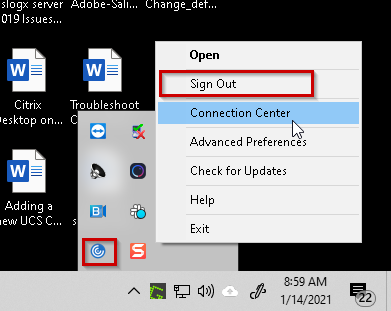
Go to the task tray in the right hand corner, Hit the up arrow, and click “sign out”

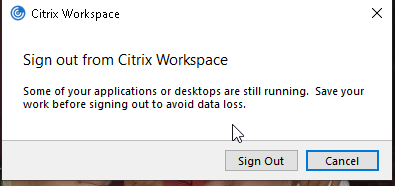
If you get this, click sign out.

Give it 30 seconds, and proceed to Exit Workspace.


Go to the task tray in the right hand corner, Hit the up arrow, and click “sign out”


Now go back to the zoom install, and click retry


You will then see this 

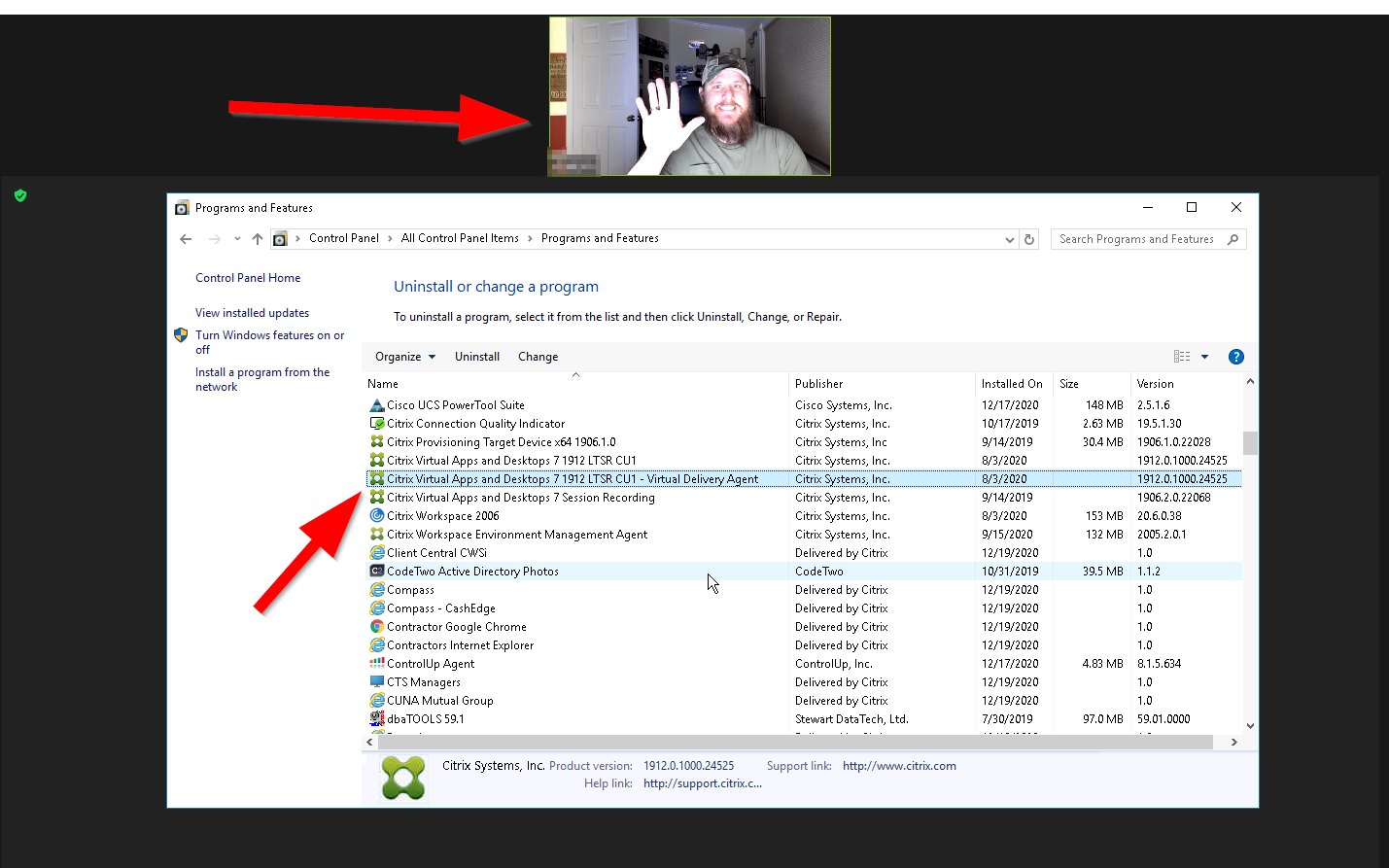
You can verify this shows in the control panel, under programs and features

You have completed the Zoom Media Plugin on the client device you are using. Now you go log back into the Citrix Virtual desktop and resume your work.


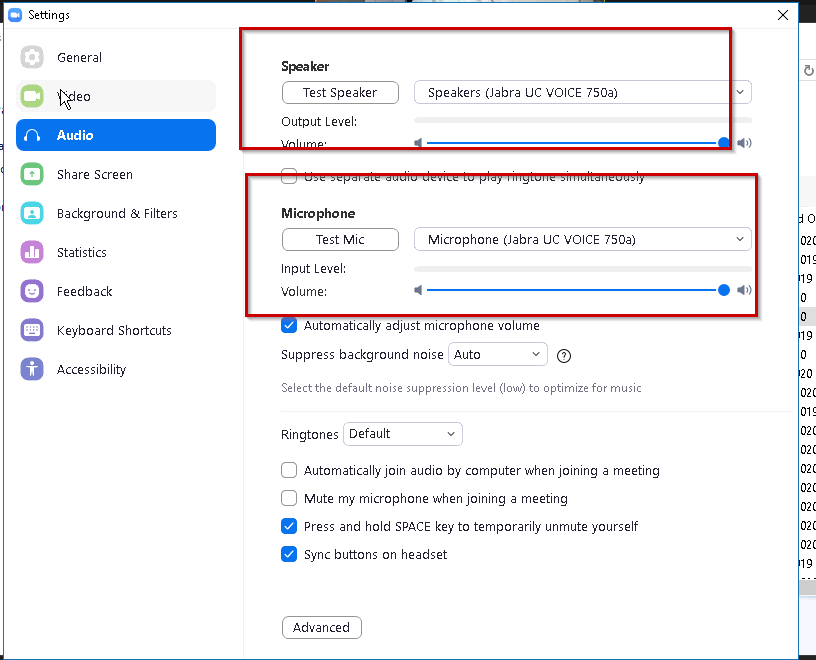
Testing Cam and Audio


VDA session

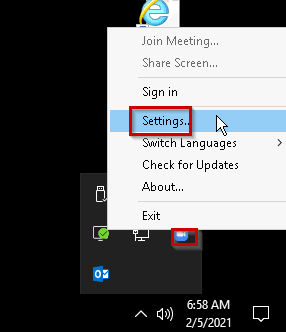
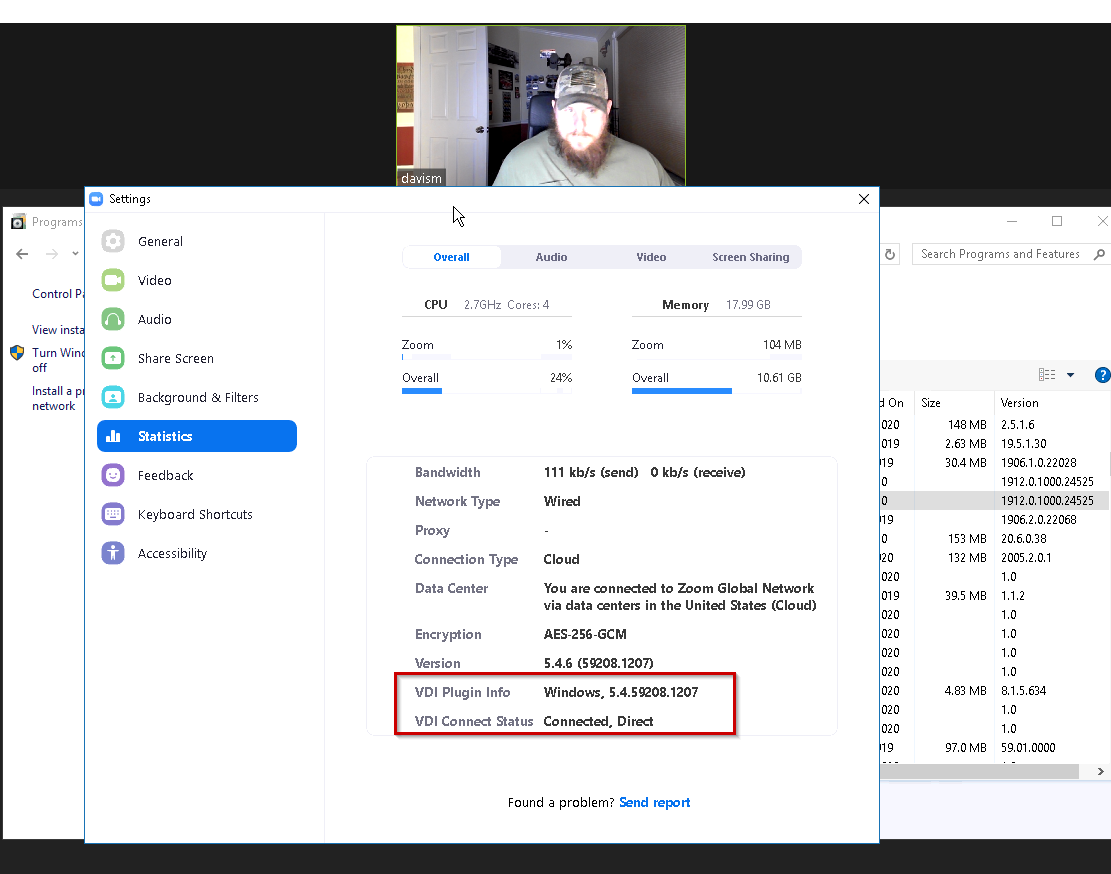
Open up the Zoom setting on the VDA and look at the statistics to see what is doing.


Picked my Mic up just fine


Rolling out and removing users installs with WEM

  1. When I needed to start rolling this out, I found that Zoom makes a user install as well. Just like teams. So, I found an uninstaller CMD, and deployed it with Citrix WEM.

  2. When I user goes to connect to a meeting this will come up.

  1. It appears though if you have the Zoom VDI client in first it will not install this either.

  2. I Created a WEM external Task, that will run this.  %appdata%\Zoom\uninstall\Installer.exe /uninstall /silent


  1. I plan on appmasking this location, I just need to make sure I don’t break Zoom and understand the details first

  2. Ideally, I would app mask this location C:\Users\%username%\AppData\Roaming\Zoom

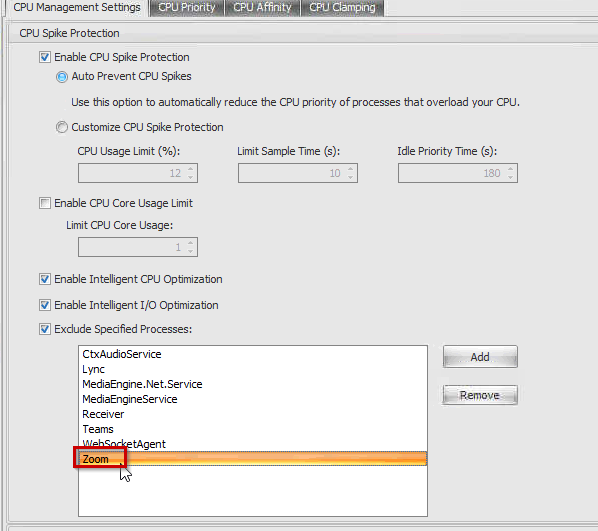
  3. Add Zoom.exe into the CPU optimization area

Troubleshooting

  1. Citrix Virtual Desktops - Zoom - Microphone and video not working in ICA session

  2. https://support.citrix.com/article/CTX275259

  1. Download and install the Zoom Citrix Media Plugin found in the link below install the client of the VDA and the Plugin on the endpoint:


  1. Note: Plugin version must be the same on the VDA and endpoint


  1. https://support.zoom.us/hc/en-us/articles/360041602711


  1. Additional resources:


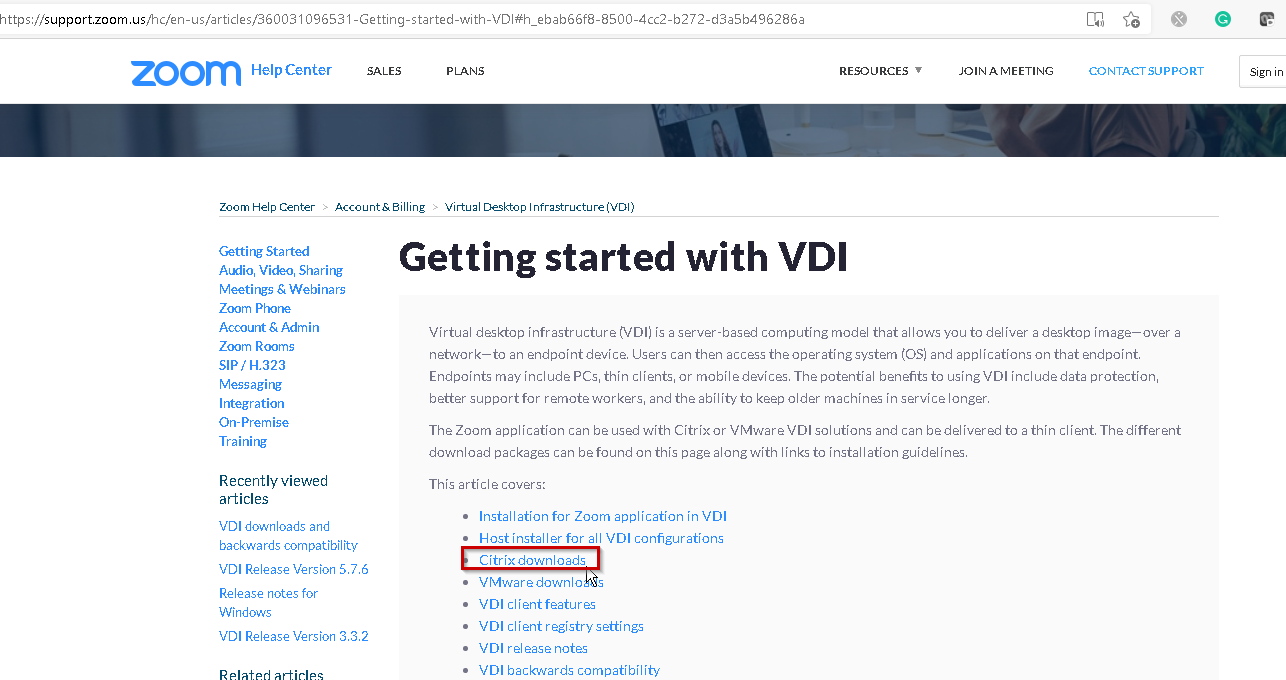
  1. https://support.zoom.us/hc/en-us/articles/360031096531-Getting-Started-with-VDI


Zooms Troubleshooting Resource

https://support.zoom.us/hc/en-us/sections/200305593-Troubleshooting


VDI Client Registry Settings

https://support.zoom.us/hc/en-us/articles/360032343371-VDI-Client-Registry-Settings


Group Policy Settings

https://support.zoom.us/hc/en-us/articles/360039100051-Group-Policy-Options-for-the-Windows-Desktop-Client-and-Zoom-Rooms


Getting Started with VDI

Getting started with VDI – Zoom Help Center

Resources

http://axendatacentre.com/blog/tag/zoom-is-unable-to-detect-a-camera-citrix/

How to deliver optimized Zoom meetings with Citrix | Citrix Blogs


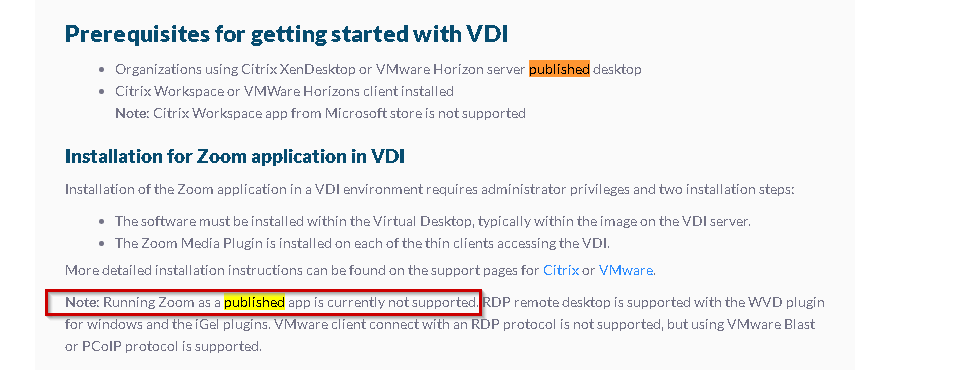
I run zoom in a published Desktop as well, but I do not run it as a seamless application such as a published application. Zoom has a statement around this as well.

Note: Running Zoom as a published app is currently not supported. “


This concludes the operations on making Zoom work in a Citrix VDI setup.